Comprehensive WordPress Website Maintenance Checklist and Tasks
A WordPress website maintenance checklist includes regular plugin, theme, and core updates, data backups, security checks, performance work, and broken link checks. Maintaining your WordPress site weekly or every two weeks helps prevent hacking, slow load times, and compatibility issues.
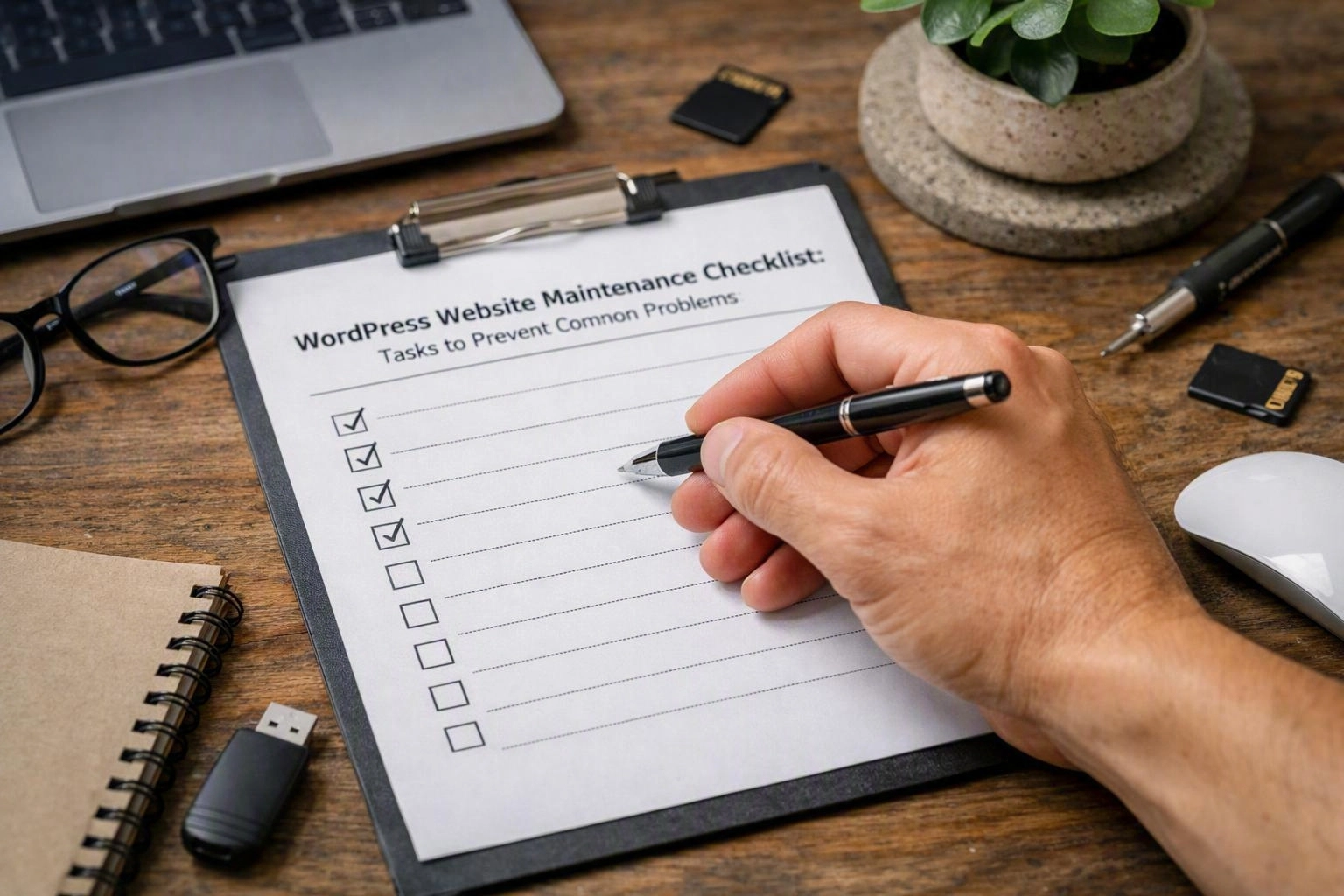
A clear WordPress website maintenance checklist gives small to medium business owners a practical way to lower update risks, protect content, and keep sites running well. It also helps site managers handle routine care with limited time and budget, so important tasks don't get missed.
What Is a WordPress Website Maintenance Checklist and Why It Matters?
The WordPress website maintenance checklist is a structured list of essential tasks designed to keep your site secure, updated, and running efficiently. It helps prevent common issues such as security vulnerabilities, slow performance, and compatibility problems by ensuring regular upkeep.
A WordPress maintenance tasks plan works like a repeatable care routine for your site. You don't wait for a crash, hack, or broken page. You follow a set process for updates, testing, backups, and checks. This is the direct answer to people asking what are the checklist for WordPress website maintenance: it is a practical list of recurring jobs that protect content, improve reliability, and lower the chance of downtime.
For many small to medium business website owners, the biggest benefit is clarity. WordPress sites often have many moving parts. These can include plugin updates, theme updates, forms, payment tools, and custom settings. One change can affect another, so a simple WordPress upkeep checklist helps you spot risks early. It also makes it easier to hand tasks to staff, a freelancer, or our team.
This kind of website maintenance supports both security and performance. Regular website backup routines, a security scan, malware detection, and vulnerability assessment lower your exposure to attacks. At the same time, database optimisation, image review, and site performance checks help pages load faster. They also help the site work more smoothly across devices.
It also matters because WordPress maintenance is never just one job. It sits inside wider website maintenance and site management, especially if your business relies on bookings, leads, or e-commerce. If you manage the site yourself, use Website Maintenance support, or pair it with WordPress Website Design, a checklist gives you a safer process. It also makes ongoing changes easier to handle.
Key WordPress Maintenance Tasks to Include in Your Checklist
WordPress maintenance tasks include updating plugins and themes, backing up your website, scanning for malware, optimising databases, and checking site speed. These tasks collectively ensure your website’s security, performance, and reliability.
Before Maintenance: Preparatory Steps
These steps help reduce common WordPress limits, especially plugin compatibility issues and update risks. For a busy business owner, even a short pre-check can stop a small update from turning into a larger outage.
During Maintenance: Core Updates and Optimisation
This is the heart of a WordPress site maintenance list. A careful update order, along with backup procedures and security audit tasks, gives you a safer path. It's much better than bulk updating everything at once.
After Maintenance: Testing and Monitoring
For business websites with limited in-house support, this before, during, and after structure is often the easiest way to manage risk. It turns a broad WordPress care routine into a simple checklist. That makes it easier to repeat and easier to delegate.
How Often Should WordPress Websites Be Maintained?
WordPress websites should be maintained regularly, ideally on a weekly or biweekly schedule. Frequent maintenance reduces security risks, keeps software updated, and ensures optimal performance, preventing unexpected downtime or vulnerabilities.
The right maintenance frequency depends on how active and business-critical your site is. If you publish often, run online sales, collect leads daily, or use many plugins, weekly checks are usually safer. If your site changes less often and uses a simpler setup, a biweekly schedule may be enough. Monthly maintenance can suit low-risk brochure sites, but it leaves more time for issues to build.
For small to medium business website owners, time and staffing matter. A practical schedule should match your available resources and your tolerance for risk. If you don't have internal technical support, shorter and more regular checks are usually easier. Quick reviews of updates, website security, and backup solutions take less time than emergency repairs.
Many site managers use a layered schedule. Weekly checks cover plugin updates, uptime, and login reviews. Biweekly or monthly work covers deeper database cleanup, vulnerability assessment, and performance monitoring. Quarterly reviews can cover forms, integrations, and content quality. This setup fits real site management better than treating every task the same.
If your business is investing in a redesign, new landing pages, or Website Design improvements, maintenance should happen more often during launch periods. We often suggest closer checks when a site has custom features. Update conflicts are more likely when several systems change at once.
How to Check if a WordPress Website Is Secure?
To check if a WordPress website is secure, perform regular security scans, verify SSL certificate status, monitor for suspicious login attempts, and review plugin and theme vulnerabilities. These checks help identify and mitigate security threats early.
If you are asking how to check if a WordPress website is secure, the goal is not one perfect score. The goal is to build repeatable checks that catch weaknesses early. That matters even more on sites with many add-ons. One outdated extension can expose the whole installation. In one recent discussion about WordPress Website Design in Dandenong, we explained that security checks work best alongside normal upkeep, not only after a scare.
Common Red Flags to Watch for During WordPress Maintenance
Common red flags during WordPress maintenance include outdated plugins/themes, slow loading pages, frequent crashes, unauthorised login attempts, and broken links. Recognizing these issues early helps prevent bigger site problems.
These warning signs often show up before a larger failure. A good WordPress site maintenance list treats them as prompts for action, not small annoyances. If a site crashes often, slows down suddenly, or fails repeated scans, pause nonessential changes. Then investigate the root cause before you continue.
Questions About Website Design in Dandenong, Victoria
Related Resources
How Much Does a Website Cost in Dandenong?
website design cost Dandenong
What It CostsHow Much Does an Ecommerce Website Cost in Australia?
ecommerce website design cost
What It CostsWebsite Redesign Cost: What to Budget for a Better Website
website redesign cost
Compared ToWeb Designer, Freelancer or Agency: Which Is Right for Your Business?
website design agency vs freelancer